Automatic Deployment on Cloudflare Pages with GitHub Integration
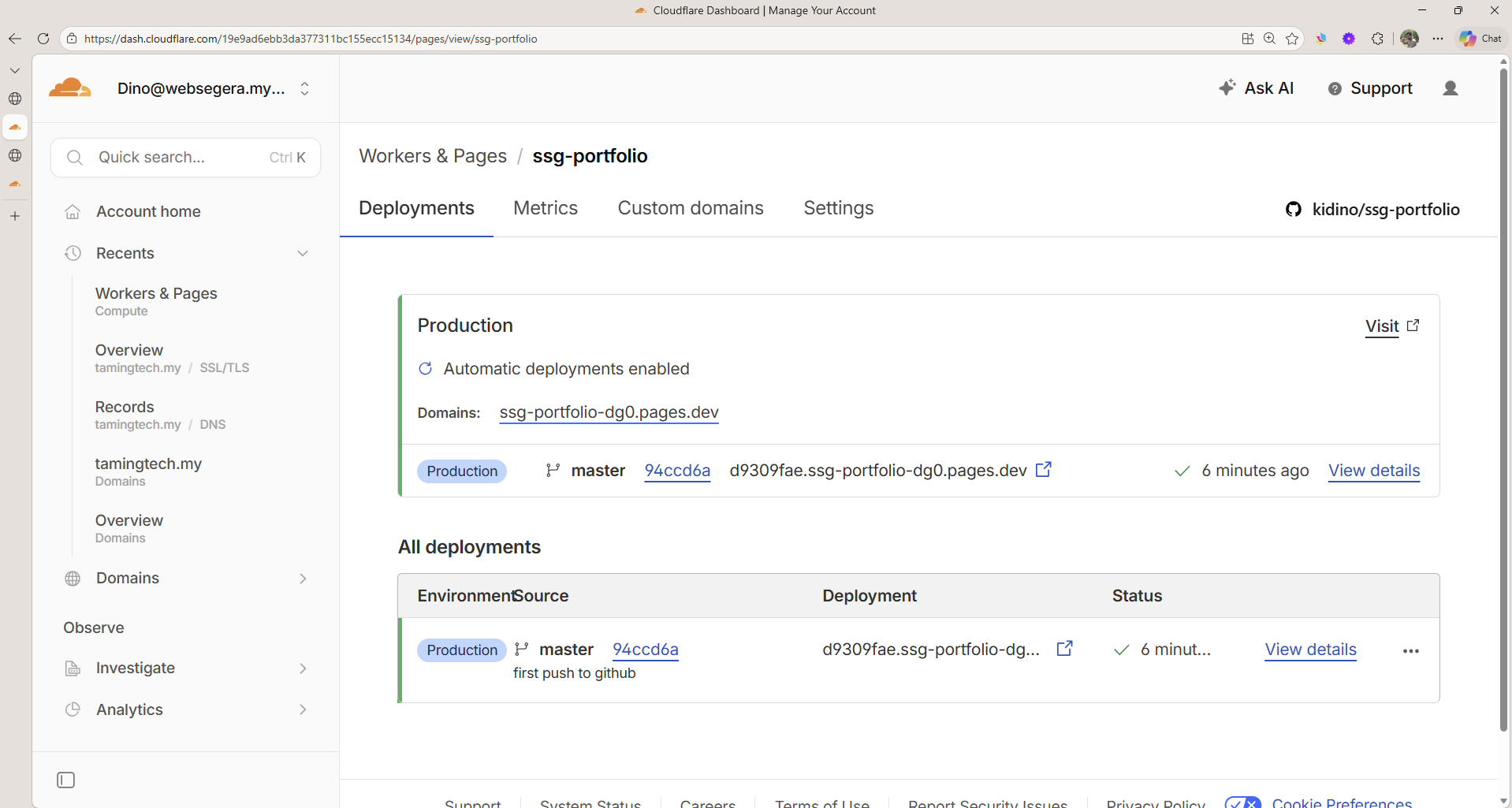
One of the most powerful features of static site generators is how easily they deploy. With GitHub and Cloudflare Pages integration, your website automatically rebuilds and goes live every time you push code—no manual deployment needed. Let's explore how this automated workflow transforms your development process.
The Problem: Manual Deployment
Before automated CI/CD, deploying a website meant:
- Building locally (
npm run build) - Uploading files manually via FTP or control panel
- Hope nothing breaks
- Repeat for every change
This is slow, error-prone, and doesn't scale. What if you could just git push and forget?
The Solution: GitHub + Cloudflare Pages
When you connect your GitHub repository to Cloudflare Pages, magic happens:
Git Push
   ↓
GitHub Receives Code
   ↓
Cloudflare Detects Change
   ↓
Cloudflare Runs Build Command (npm run build)
   ↓
Tests Output (dist/ directory)
   ↓
Deploys to Cloudflare Network
   ↓
Your Site is Live! ✨
This entire process takes 30-60 seconds automatically. No manual steps. No deployment scripts. Just code and go.
How It Works: The Complete Flow
Step 1: Connect Your Repository
In Cloudflare Pages dashboard:
- Click Create a project
- Select Connect to Git
- Authorize GitHub
- Select your repository (e.g.,
yourusername/ssg-portfolio) - Click Begin setup
Step 2: Configure Build Settings
Cloudflare asks for three things:
Framework preset     : None (custom)
Build command        : npm run build
Build output         : dist/
Root directory       : (leave blank if repo root)
Why these settings?
- Framework preset: "None" because SSG Portfolio is custom Node.js, not a framework
- Build command: Matches your
package.jsonscript that generates the site - Build output: Where your generator outputs the static HTML files
- Root directory: Leave blank if your
package.jsonis in the repo root
Step 3: Deploy
Click Save and Deploy. Cloudflare:
- Clones your repository
- Installs dependencies (
npm install) - Runs your build command (
npm run build) - Uploads the
/dist/folder to their global network - Assigns you a unique URL (e.g.,
project-name.pages.dev)
Done! Your site is live.
The Automated Workflow
Now that everything is connected, here's your new deployment process:
1. Write Content Locally
Create or edit a post in /content/:
# Create new article
echo "---
title: \"My New Post\"
date: 2024-01-31
tags: [\"tutorial\"]
description: \"About my post\"
---

# Content here..." > content/new-post.md
2. Test Locally (Optional)
npm run build      # Build locally
npm run serve      # View at http://localhost:3000
Verify everything looks perfect before pushing.
3. Commit and Push
git add content/new-post.md
git commit -m "Add new post about deployment"
git push origin main
4. Automatic Deployment (Instant!)
The moment your code hits GitHub:
- Webhook triggers - GitHub notifies Cloudflare
- Build runs - Cloudflare executes
npm run build - Files generated - New HTML created from your markdown
- Deploy - Cloudflare distributes to global CDN
- Live - Your site is updated worldwide (usually <60 seconds)
You can watch the deployment in real-time in Cloudflare's dashboard:
Deployment Status: ✓ Initializing
Deployment Status: ✓ Cloning repository
Deployment Status: ✓ Installing dependencies
Deployment Status: ✓ Running build command
Deployment Status: ✓ Uploading files
Deployment Status: ✓ Deployed!
Why This is Brilliant
For Content Writers
- Just commit markdown files
- No need to learn deployment tools
- See changes live immediately
- Full version control with Git
For Developers
- Reproducible builds (same command locally and on server)
- No configuration drift (everything in code)
- Rollback with
git revert(just re-push old code) - Production environment is identical to local
For Performance
- Static files cached globally on Cloudflare's CDN
- Instant content delivery worldwide
- No server processing time
- Perfect lighthouse scores
For Cost
- Free tier available (generous limits)
- No database server needed
- No application server needed
- Just pay for what you use
Preview Deployments
Cloudflare Pages also offers preview deployments for every pull request:
1. Create a branch and make changes
2. Open a pull request
3. Cloudflare automatically builds and deploys to a unique preview URL
4. Team reviews the preview
5. Merge PR → Preview becomes production
This is like having a staging environment that's automatically created for every change!
Example Workflow: Writing a New Post
Let's trace what happens when you write a new article:
Before Pushing
# Create article
cat > content/my-new-post.md << 'EOF'
---
title: "My New Post"
date: 2024-01-31
tags: ["ssg", "markdown"]
description: "A great article"
---

# My New Post

Content here...
EOF

# Test locally
npm run build
npm run serve
# Visit http://localhost:3000/my-new-post.html
# Looks great! ✓
The Moment You Push
git add content/my-new-post.md
git commit -m "Add my new post"
git push origin main
What Happens Automatically (Behind the Scenes)
On GitHub:
- Code is received
- Webhook is triggered
- Deployment notification sent to Cloudflare
On Cloudflare Pages:
1. Clone latest code from GitHub
2. Install dependencies (marked, gray-matter, handlebars)
3. Run: npm run build
   - Load site.config.js
   - Parse all markdown files
   - Generate HTML from templates
   - Copy static assets
   - Create index.html
4. Upload dist/ directory
5. Distribute globally via CDN
Result: Your new post is now live at:
- Homepage listing:
https://yoursite.pages.dev/ - Individual post:
https://yoursite.pages.dev/my-new-post.html
Time elapsed: 30-60 seconds
Your effort: Just git push
Setting Up GitHub Integration
If you haven't set it up yet, here's the complete process:
1. Create GitHub Repository
git init
git add .
git commit -m "Initial commit"
git branch -M main
git remote add origin https://github.com/yourusername/ssg-portfolio
git push -u origin main
2. Sign Up for Cloudflare Pages
Visit: https://pages.cloudflare.com/
- Sign up (free account available)
- Verify email
3. Connect Repository
- In Cloudflare Pages dashboard: Create a project
- Select Connect to Git
- Authorize GitHub (grants permission to monitor your repos)
- Select your
ssg-portfoliorepository - Click Begin setup
4. Configure Build Settings
Framework preset     : None
Build command        : npm run build
Build output         : dist/
Root directory       : (blank)
Environment variables: (none needed for basic setup)
5. Save and Deploy
Click Save and Deploy. First build starts automatically!
6. View Your Live Site
Once deployment completes:
- You get a unique URL:
https://your-project.pages.dev - Custom domain? Go to Domain settings and add it
- SSL/HTTPS automatically enabled
Best Practices
1. Always Test Locally First
npm run build
npm run serve
# Verify at http://localhost:3000
# Then git push
2. Use Meaningful Commit Messages
git commit -m "Add article about deployment"
git commit -m "Fix typo in header"
git commit -m "Update site config"
3. Create Branches for Major Changes
git checkout -b new-feature
# Make changes, test locally
git push origin new-feature
# Review preview deployment
# Create pull request
# Merge to main when ready
4. Monitor Deployments
- Check Cloudflare dashboard after each push
- Review build logs if something fails
- Rollback with
git revertif needed
5. Use .gitignore Properly
Ensure node_modules/ and dist/ are ignored:
# .gitignore
node_modules/
dist/
.env
.DS_Store
Cloudflare will:
- Install fresh
node_modules/(via npm install) - Generate fresh
dist/(via npm run build)
Troubleshooting Deployments
Build Fails with "package.json not found"
- Cause: Wrong root directory in Cloudflare settings
- Fix: Leave root directory blank (or set correct path)
Build Fails with "npm ERR!"
- Cause: Missing dependencies or package errors
- Fix: Test locally first (
npm install && npm run build)
Site Doesn't Update
- Cause: Change wasn't pushed or wrong branch
- Fix: Verify branch (usually
main), check GitHub shows latest code
Custom Domain Not Working
- Cause: DNS not configured
- Fix: Follow Cloudflare's DNS setup (usually CNAME record)
The Magic of Automation
What used to take 15 minutes:
- Build locally
- Upload files via FTP
- Clear cache
- Test on live site
- Hope nothing broke
Now takes 30 seconds and happens automatically.
This is the power of static site generation + CI/CD automation. You write content, push to Git, and your site is live. No deployment scripts, no servers to manage, no complexity.
Next Steps
- If not deployed yet: Follow the setup steps above
- If already deployed: Start adding content! (
git pushdeploys automatically) - Custom domain: Add it in Cloudflare settings (free HTTPS included)
- Analytics: Cloudflare Pages includes basic analytics (free)
Key Takeaways
- GitHub + Cloudflare Pages = Automated Deployment
- Every
git pushautomatically rebuilds and deploys your site - Deployments are fast (<60 seconds usually)
- No manual steps, no FTP, no servers to manage
- Preview deployments for pull requests
- Perfect for content creators and developers
- Completely free for hobby projects
Your deployment pipeline is now as simple as writing code and pushing to Git. Focus on creating great content, and let automation handle the rest. Welcome to the future of web publishing! 🚀
Questions about deployment? Check your Cloudflare Pages dashboard for deployment logs, or review your GitHub repository settings. Everything is now automated and working in your favor!